Installation🔗
📥 Installing the EarthDaily® Plugin🔗
The EarthDaily® plugin is available directly through the QGIS plugin manager as an official plugin. In QGIS, go to “Plugins > Manage and Install Plugins..."

The Plugin Manager will appear. Type "EarthDaily" in the search bar.


Info
You can also get plugin binaries and source code within the Git repository of the plugin. In this case please select “Clone and download” to get a zip archive of the plugin. In the plugin manager, you will have to select the option “Install from Zip.”

Then select the archive just downloaded and click "Install Plugin."

The installation message will appear on the top of the plugin manager:
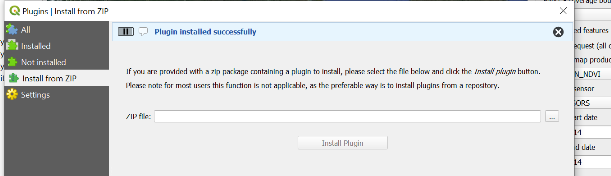
✅ Plugin Installed🔗
Once your plugin is installed, you will see:
- A new icon on the toolbar
- A new option in the plugin menu

🔀 Configuration🔗
To configure the plugin, go to "Plugin > EarthDaily® Plugin > Options." The following Options will appear:

The widget will allow you to set the following options:
- User Credentials: Credentials shall be used for authentication on EarthDaily®'s API Platform. The button "Connect" allows the user to test the validity of registered credentials. If successful, the following message will appear.

- Geographical Region: Select your region to ensure the platform selection, as our delivery network includes two physical nodes:
- One in Europe for polygons located in Europe, South America and South Africa
- One in the U.S. for polygons located in North America and Australia
Info
If testing on our pre-production platform, please select "Use testing service" and "US".
-
Coverage Parameters: The coverage parameters allow you to set your crop type and sowing date that will be used as parameters in the API request.
-
Paging Limit: Paging limit is a parameter limiting the number of items in the API response, the default value is 40. This selection can strongly impact response time.
-
Map output directory: The map output directory is the folder where all exported data will be stored for further access and analysis.
Info
The output directory must be on your desktop!
The "About" button will display the following:
