Add vector layers🔗
Iris supports several methods for adding vector layers to your current viewer.
Draw a vector layer🔗
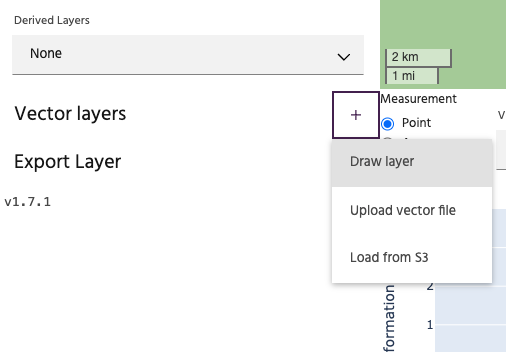
Select Draw layer to create a vector layer by manually drawing one on the map.
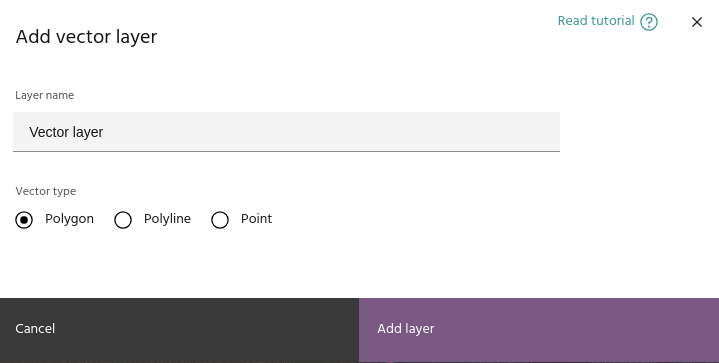
The dialog allows you to type a name for the vector and select the geometry
type. Available options are Polygon, Polyline, and Points. After clicking
the Add layer button, the new vector will appear in the layer list. Click the
draw icon to toggle drawing, then click the new icon
on the map to begin the drawing session.
Tip
The icon on the map will indicate whether the drawn layer will be a polygon, point, or polyline.
Click on the map to draw the desired vector object.
- For polygons, finalize the polygon by clicking the first point to close the polygon.
- For polylines, finalize by clicking the last point.
- For points, each individual point will be drawn separately.
Upload a GeoJSON layer🔗
Select the Upload vector option to load a vector layer from your local
computer. Valid formats for loading vectors include:
- GeoJSONs
- Shapefiles (as
.ziparchives) - GeoPackage (
.gpkg) - CSVs
- Parquet
- AutoCAD DXF
- KML/KMZ
Warning
Vector files have a large amount of variability from one software package to the next. Iris attempts to load vectors using the GeoPandas package, which is successful for most vector files from common sources (QGIS, Arc, etc). For help loading non-standard vector layers, contact support.
Load from S3🔗
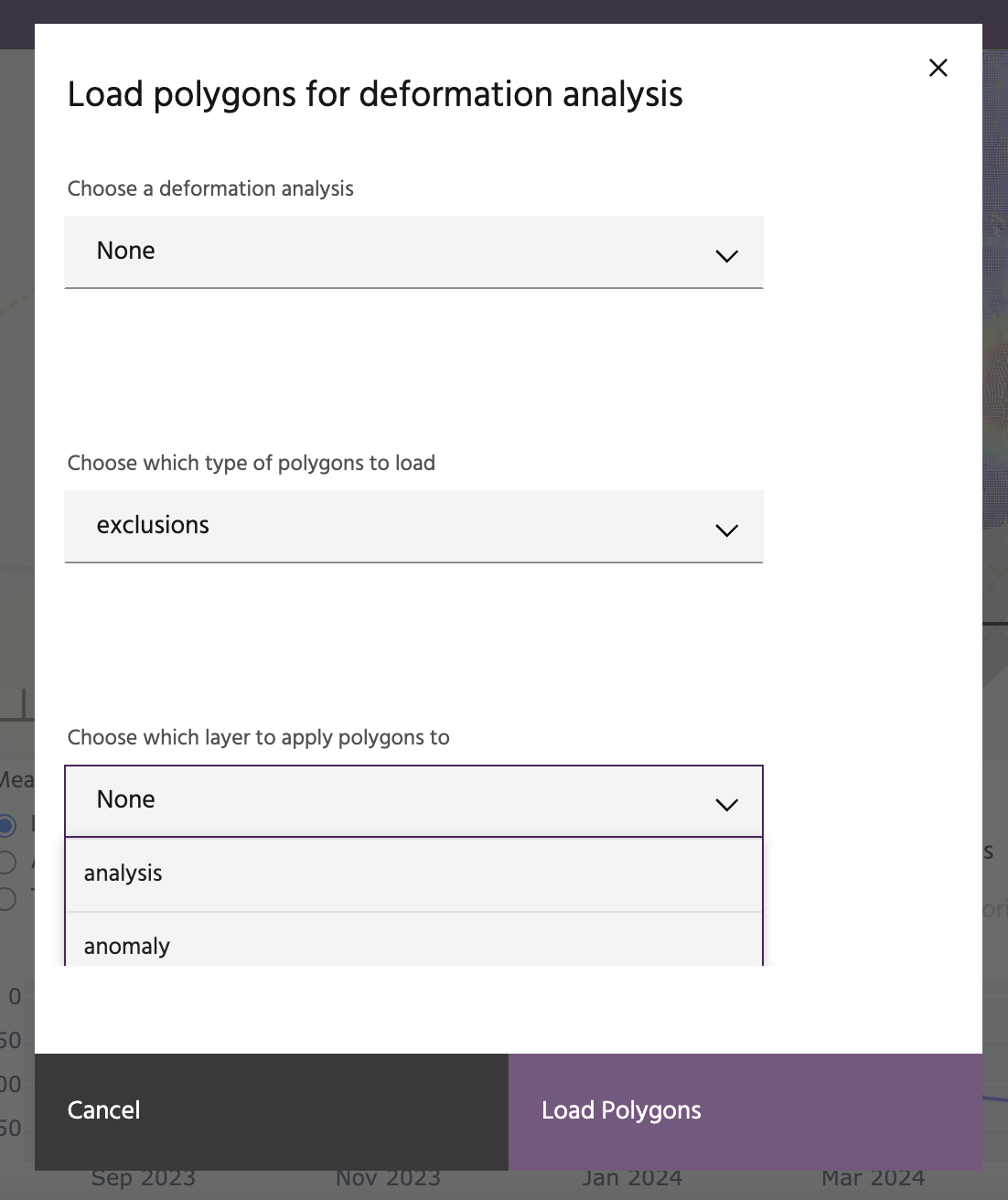
This is a special option that loads specific polygons associated with customizations requested for a customer site. This option can only be used after a deformation layer has been added for visualization. Users will have the option to choose the project, the type of polygons (exclusion or inclusion) and whether to apply it to the current analysis to mask the analysis or alerts.