Starting a Marigold session🔗
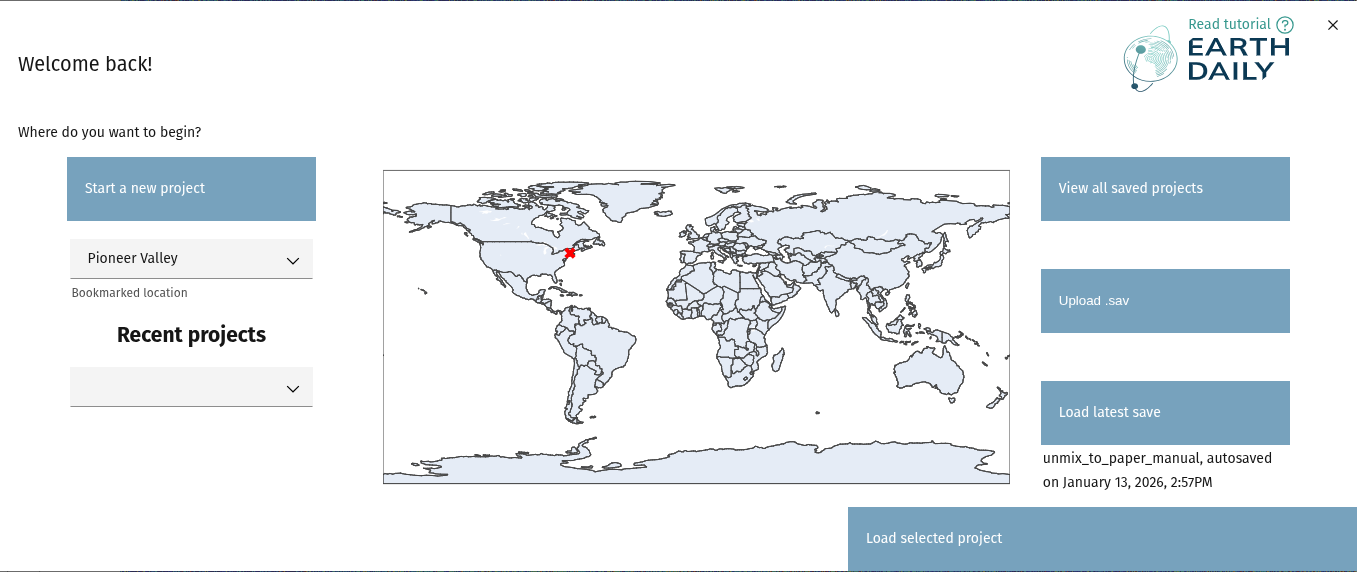
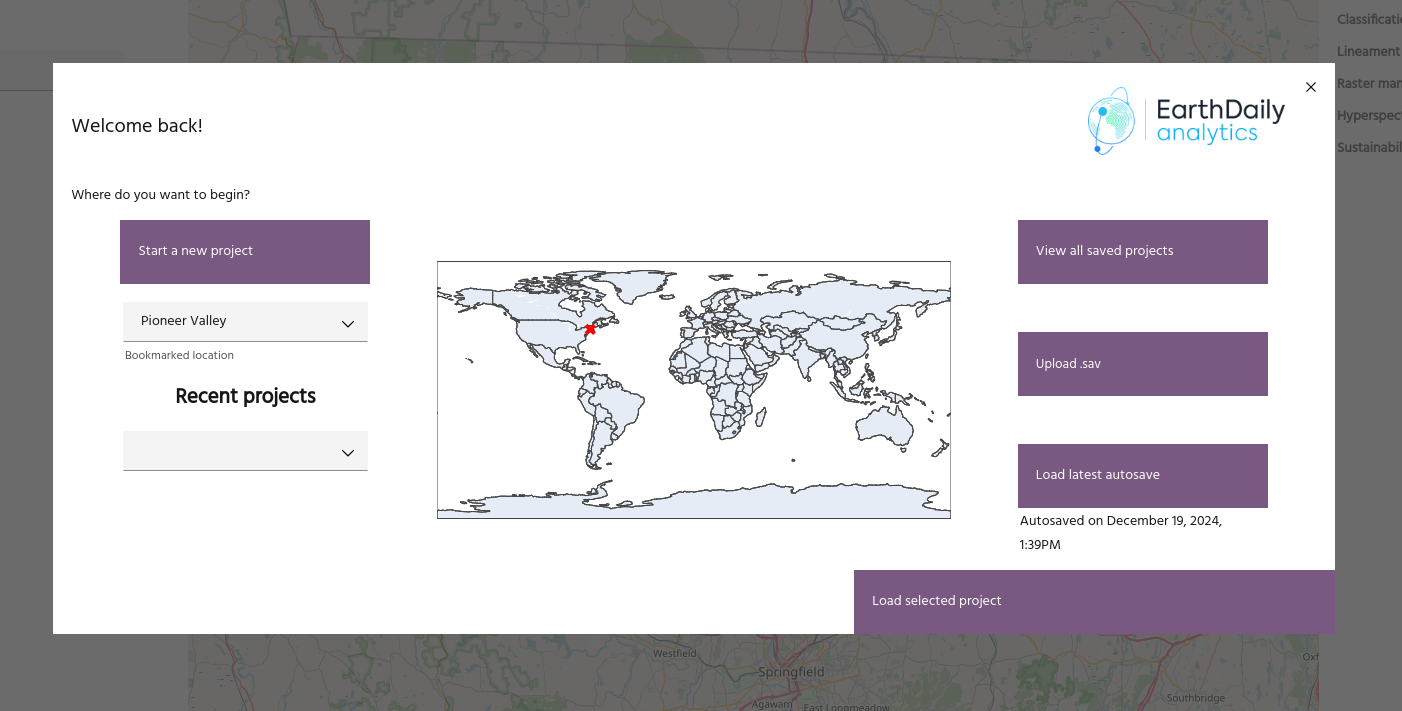
When you load the Marigold app, you will see a splash screen with options for easily loading your projects and bookmarks.
Start a new project🔗
This option will start a new Marigold project at the current map location. By default, the Sentinel-2 Bare Earth Composite will be loaded into your session. This option is useful if you are starting a new analysis workflow.
Bookmarks🔗
A list of your saved bookmarks will appear here. Selecting one will move the Marigold map to the bookmarked location, as well as indicate the location on the inset map.
Tip
You can set a default bookmark in your user settings.
Recent projects🔗
A list of your seven most recent projects will appear here. As with bookmarks, selecting one will indicate on the map where the save is located.
Note
The first time you select a project on the splash screen, there will be a brief loading period for the geometry to be extracted from the save. This operation only needs to be run once per save file.
Click the Load selected project button to load the project selected from the
dropdown.
View all saved projects🔗
This button will bring up the standard load project dialog for access to all of your saved projects.
Upload .sav🔗
This option will allow you to upload a saved project from your computer. Once uploaded, this project will be at the top of the recent projects list.
Load latest save🔗
This option loads the most recent save.
Tip
The dialog will indicate if your latest save is an autosave.