Raster layers🔗
Raster layers are the primary data object in a Marigold session. Add layers to your maps and configure your layer settings using the Raster layers section on the left side panel. Marigold will display layers "top down," meaning that layers at the top of the list will appear above layers underneath.
Add raster layers🔗
Raster layers can be added from Catalog, or layers exported from other Marigold projects.
Basic layer configuration🔗
Visibility and ordering settings can be modified from a layer's row in the list.
Toggle visibility🔗
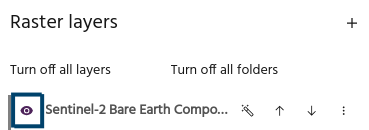
Use the eye icon to toggle layer visibility on and off.
Autoscale🔗
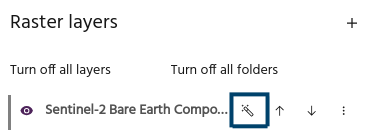
Use the magic wand icon to autoscale layers using a linear stretch. By default, this stretch will clip the lowest 2% and the highest 2% of values to eliminate extreme bright and dark regions, and stretch the remaining values across the dynamic range of values to enhance contrast. The AOI used to pull data from defaults to the Current viewport.
Tip
Default stretch values and AOIs can by modified in your settings.
Move layers🔗
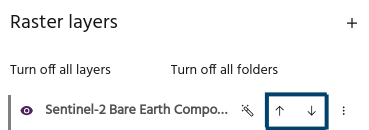
Use the up and down arrows to rearrange the layer order.
More configuration options🔗
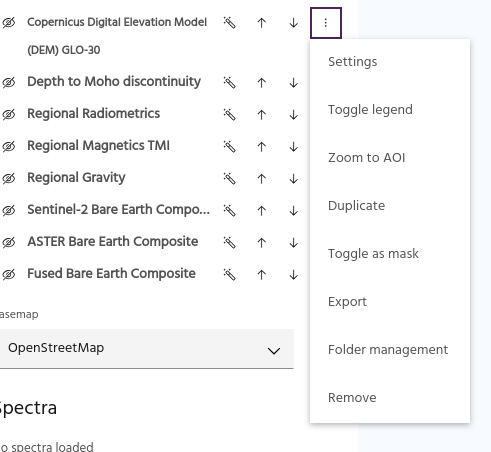
More advanced configuration options are available from the overflow menu in the layer's row.
Layer settings🔗
Detailed settings of a layer such as name, visible bands, contrast, etc can be accessed from the layer settings menu.
Add a legend🔗
Select Toggle legend to turn the legend for a layer on and off. Legends will be stacked when turned on for multiple layers.
Tip
The position of legends and the size of legends for ternary layers can be modified in user settings.
Zoom to AOI🔗
If the underlying imagery of the layer is localized, you can quickly jump to the
latest available image by selecting Zoom to AOI in the kebab menu.
Warning
If the selected layer has too many images, a warning notification will be generated.
Duplicate a layer🔗
Select Duplicate to add a copy of the layer to the map.
Toggle as mask🔗
Select Toggle as mask to mark the layer as a mask that can be used for
masking other layers.
Export🔗
Select Export to export a layer for import into another Marigold project.
Folder management🔗
Select Folder management to modify the folder of a layer.
Remove a layer🔗
Select Remove to remove a layer from the Marigold project.
Warning
Layers that have been removed from the project will need to be added or created again!
Bulk layer operations🔗
Shortcuts are available for manipulating several layers at once.
Turn off all layers🔗
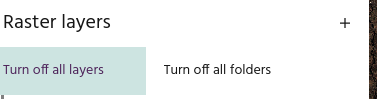
Turns off the visibility for all layers.
Turn off all folders🔗
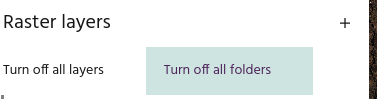
Turns off the visibility for all folders.
Remove multiple layers🔗
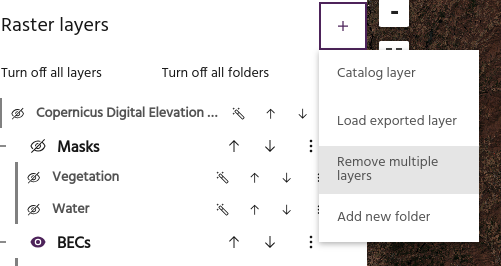
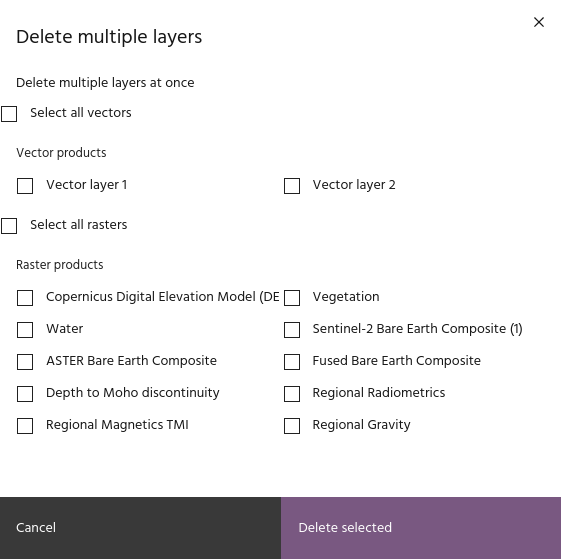
Remove multiple vector and raster layers at once. Selecting this option will load a dialog where raster and vector layers can be selected for deletion.